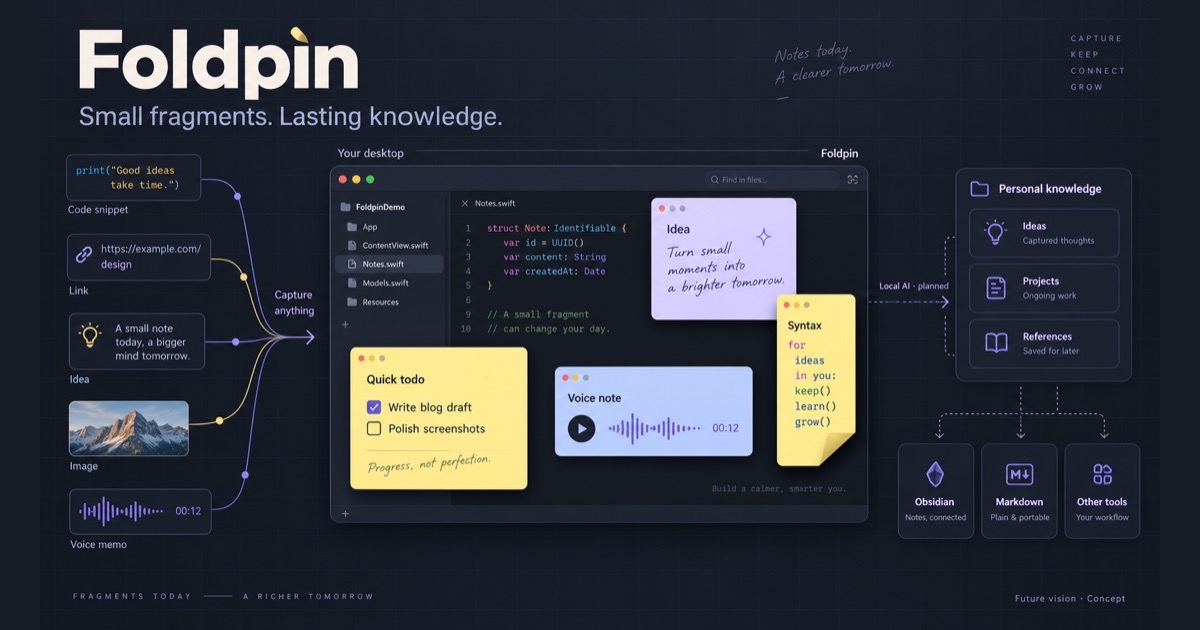
The cover illustrates Foldpin’s future direction, not the actual interface. Local AI organization, a personal knowledge base, and integrations are still planned. The features and screenshots below show the current prototype.
Do you ever leave a few sticky notes open while you work, just to keep things you’ll need in a moment close by?
I do this all the time. SQL queries I need to reference, commands I keep copying, unfinished tasks, and ideas that come to mind while I’m working on something else usually end up in macOS Stickies. I write a few lines, put the note beside my work, and carry on.
Over time, I started wanting a few small improvements. Could code be easier to read? Could I check off tasks directly? Could a note fold out of the way when I don’t need to see all of it?
Recently, I shared my desktop on X and half-joked that maybe I should build something myself. Today, I want to follow up and show what I’ve been working on.
It’s called Foldpin, a native Mac sticky notes app that’s still in development. I’m starting with these small, everyday moments and trying to make capturing things feel a little more natural.
Starting with Stickies
What I value most about sticky notes is that they can stay beside the window I’m working in.
I might be following a checklist, referring to a SQL query, or holding onto an idea until I finish my current task. The note may only contain a few lines, but I’ll refer to them repeatedly as I work.
I want to start writing without deciding on a title, folder, or category first. I also want the information to stay visible when I need it and take up less space when I don’t.
Here’s a sample set of notes in macOS Stickies:
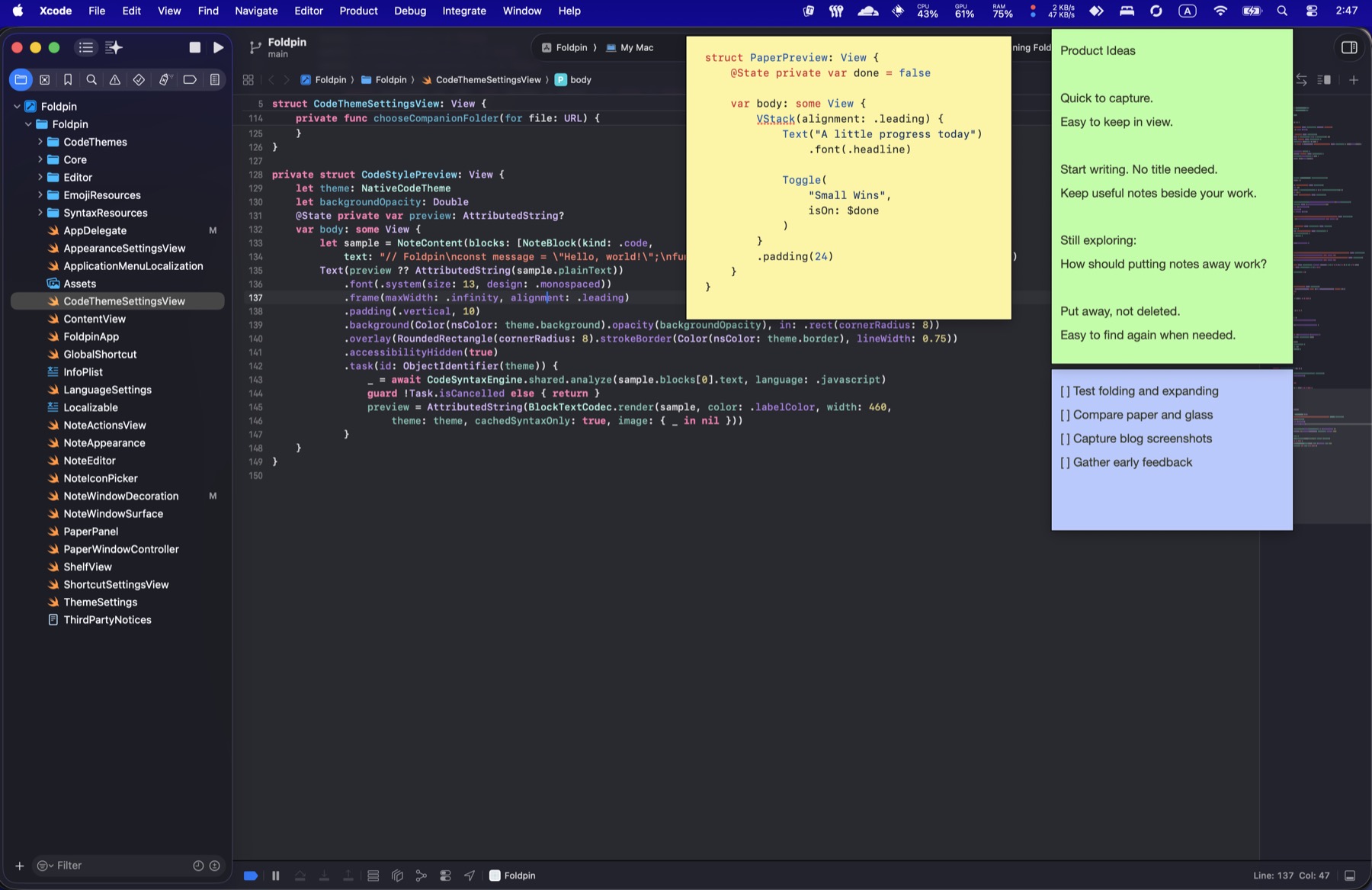
A sample workspace using macOS Stickies.
And here’s the same content in Foldpin:
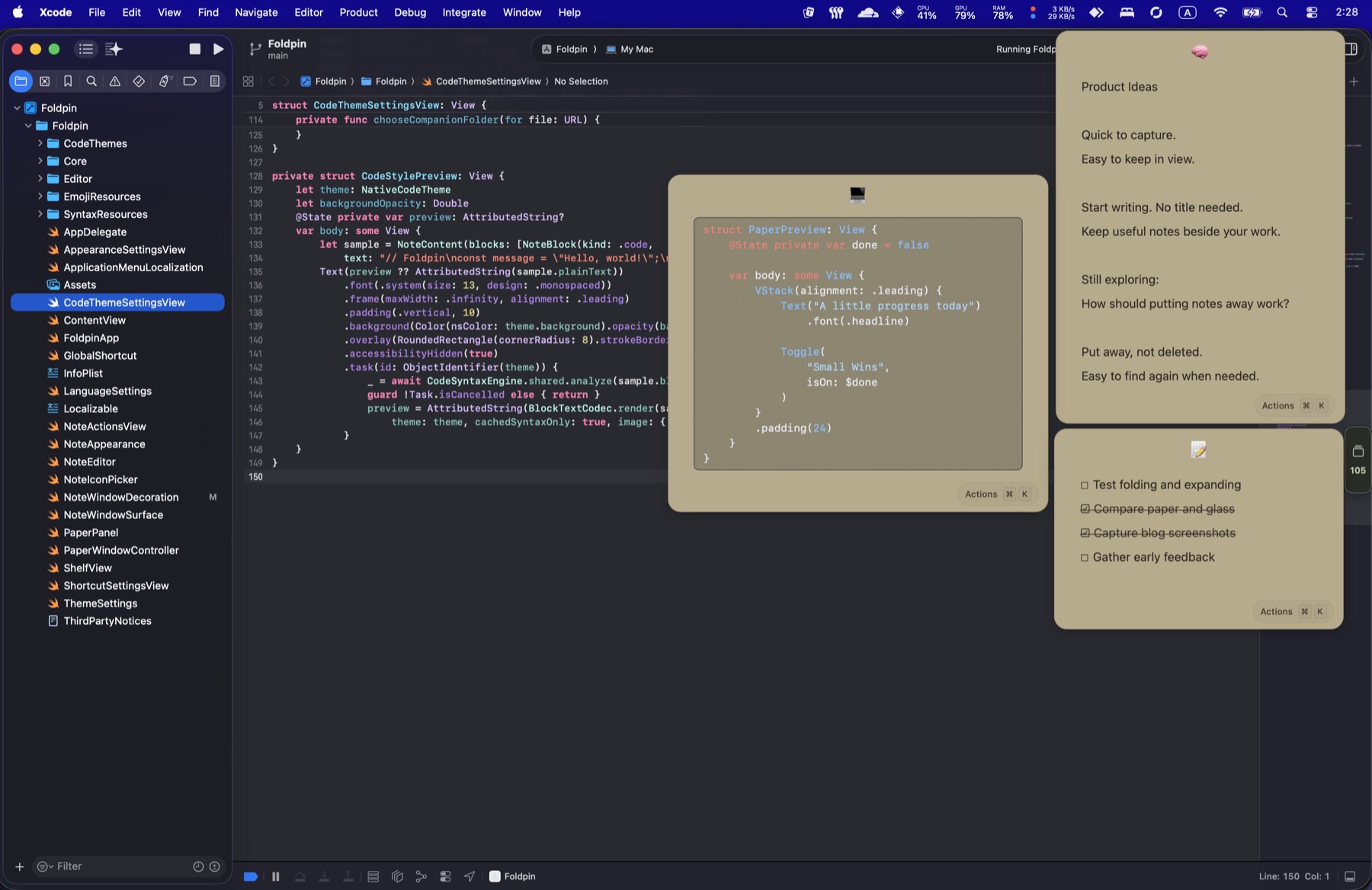
Foldpin’s own Xcode project in the background, with code snippets, development tasks, and product ideas in front.
I want to preserve that immediacy while making editing, placement, and appearance fit the way I work. That’s where Foldpin started.
Each note can be moved, resized, and pinned on top independently. I can keep reference material beside my editor or browser and move it as my work changes.
Native rendering, with responsiveness in mind
For something I use to capture quick thoughts, responsiveness matters every time I open a note, type, or switch between windows.
Foldpin is built with SwiftUI and AppKit, with NSTextView and TextKit 2 handling native text rendering and editing. The notes don’t contain an embedded web editor. Text input, selection, and undo use the native editing system.
Code is parsed locally in the background for syntax highlighting, and the results are rendered by the native text system. I’ve also been reducing redundant layout work and unnecessary updates. Changing the appearance or folding and expanding a note keeps the same underlying editor in place.
The experience I’m aiming for is straightforward: think of a sentence and write it down; paste something and keep editing; leave several notes open without losing focus on the work itself.
I’ve run component performance checks and synthetic tests. I’ll keep refining responsiveness with real multi-window use and longer notes.
Making the editing experience a priority
I write and revise my sticky notes throughout the day, so the editing experience is a major focus for Foldpin. I want adding details and rearranging thoughts to follow naturally from writing, with less time spent formatting or hunting for controls.
You can start typing as soon as you create a note. If you need a heading, a few tasks, or some code along the way, add that structure when it becomes useful. As the note grows, you can reorganize it.
Foldpin uses a Notion-like block editing approach: type / to choose a block type, drag block handles to change the order, or use familiar Markdown typing shortcuts to keep your hands on the keyboard.
It currently supports headings, text, tasks, lists, quotes, dividers, code, images, and basic tables. A few quick lines can grow into a working note with a checklist, code, and screenshots.
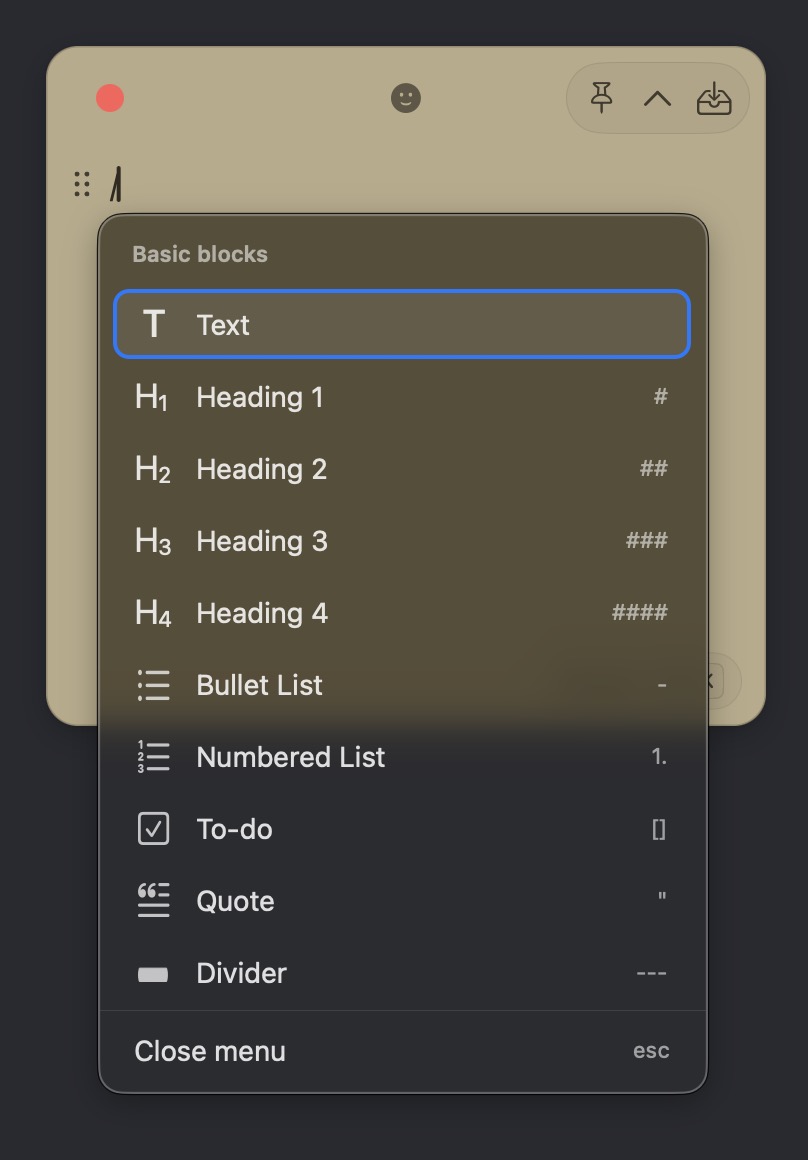
Type / to choose a block type. The menu also shows the corresponding typing shortcuts where available.
Easy to rearrange as you go
When I jot something down, I don’t always know the right order yet. To reorganize a note, you can drag the six-dot handle on the left or open the block menu to move a block up or down.
The same menu lets you change the block type, copy it, create a duplicate, or delete it. For tasks, you can also toggle completion. Working with whole blocks saves some of the repeated selecting, cutting, and pasting involved in tidying up a note.
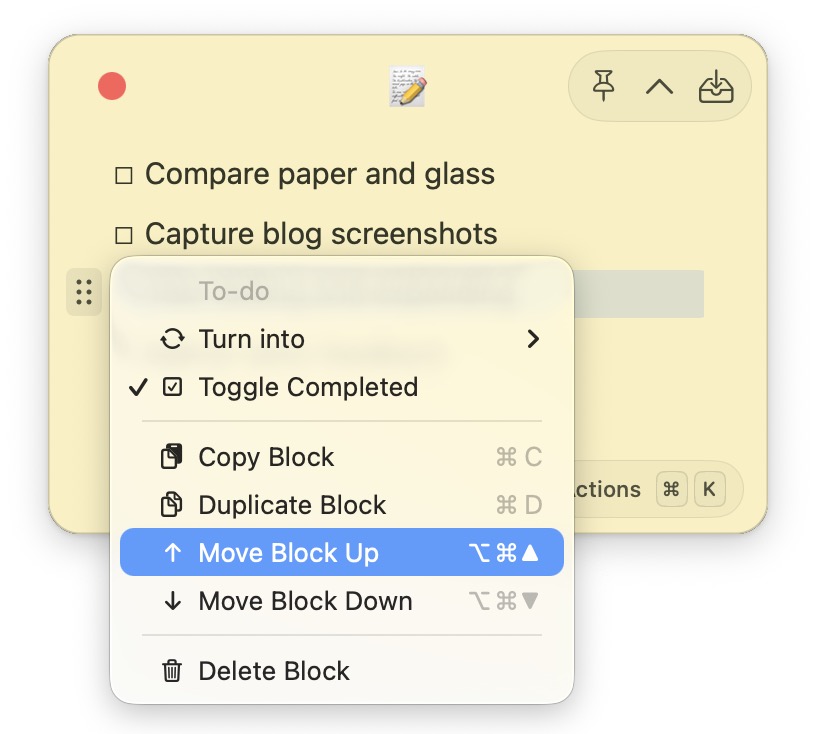
Open the block menu from the six-dot handle to move a block up or down, or drag the handle to reorder it.
Paste it in and keep writing
Editing often starts with a paste. Whether I’m copying instructions from a document or keeping a code snippet handy, I want to use it right away with as little cleanup as possible.
Foldpin can automatically convert pasted Markdown into blocks and common inline formatting. Headings, lists, tasks, and code wrapped in triple backticks become content you can continue editing.
Code blocks support automatic language detection and syntax highlighting, with a manual language selector when needed. Pasting inside a code block preserves the original code text for reading and copying.
Here’s a sample README: the Markdown source is shown in Stickies on the left, and the actual result after pasting into Foldpin is on the right. The pasted content is rendered with headings, code blocks, inline formatting, and a table.
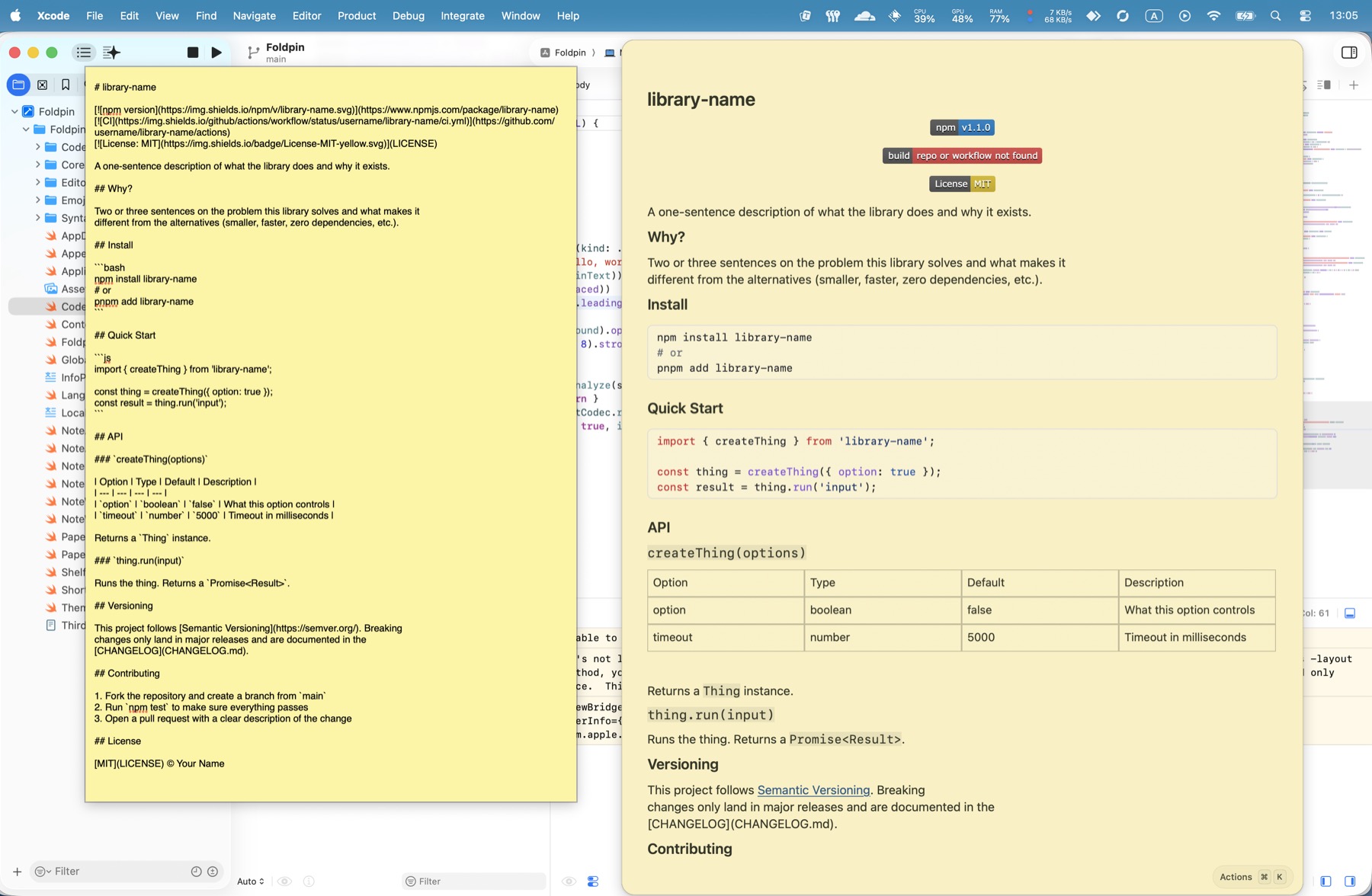
The same sample README, from Markdown source to editable content in Foldpin.
When talking is quicker than typing
Some thoughts are easier to say out loud.
Foldpin already supports quick recording through a global keyboard shortcut. With Foldpin running, you can bring up a recording note while working in another app. Foldpin asks for microphone permission the first time you use this feature. Press the shortcut again to finish and save the recording.
The default shortcut is Control + Option + R, and you can change it in Settings.
Recordings are saved locally in your notes and can be played back later. It’s a way to hold onto a thought while your hands or attention are occupied elsewhere.
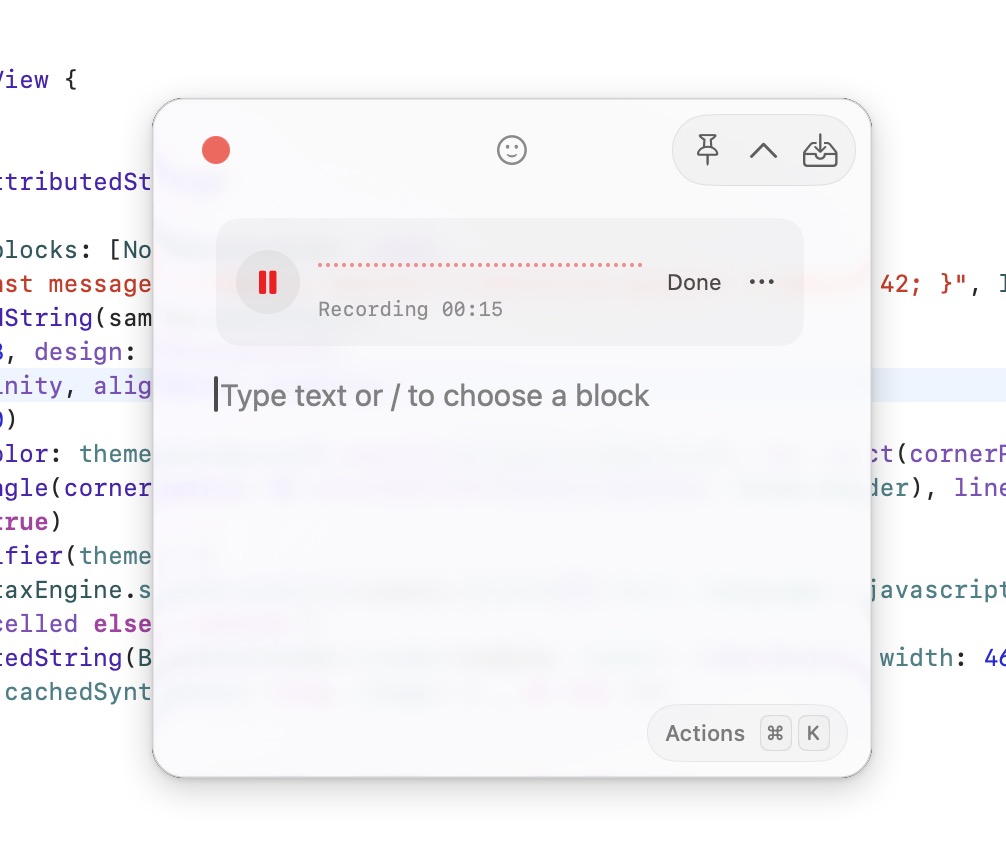
A recording in progress, with elapsed time and recording controls. You can still add text underneath.
Speech-to-text is something I want to add next; it isn’t implemented yet. I’d like recordings to become editable, searchable text, making spoken thoughts easier to return to and use.
A few details that matter to me
Icons that make notes easier to recognize
Each note can have an emoji icon.
A computer for code, a brain for ideas, a memo for development tasks. With several notes open, those icons help me tell them apart without reading through each one.
When the note is expanded, its icon sits at the top center. When the note is folded, the icon appears beside the title drawn from its first line.
You can browse categories, search, paste an emoji, or pick one at random. You can also remove it whenever you like.
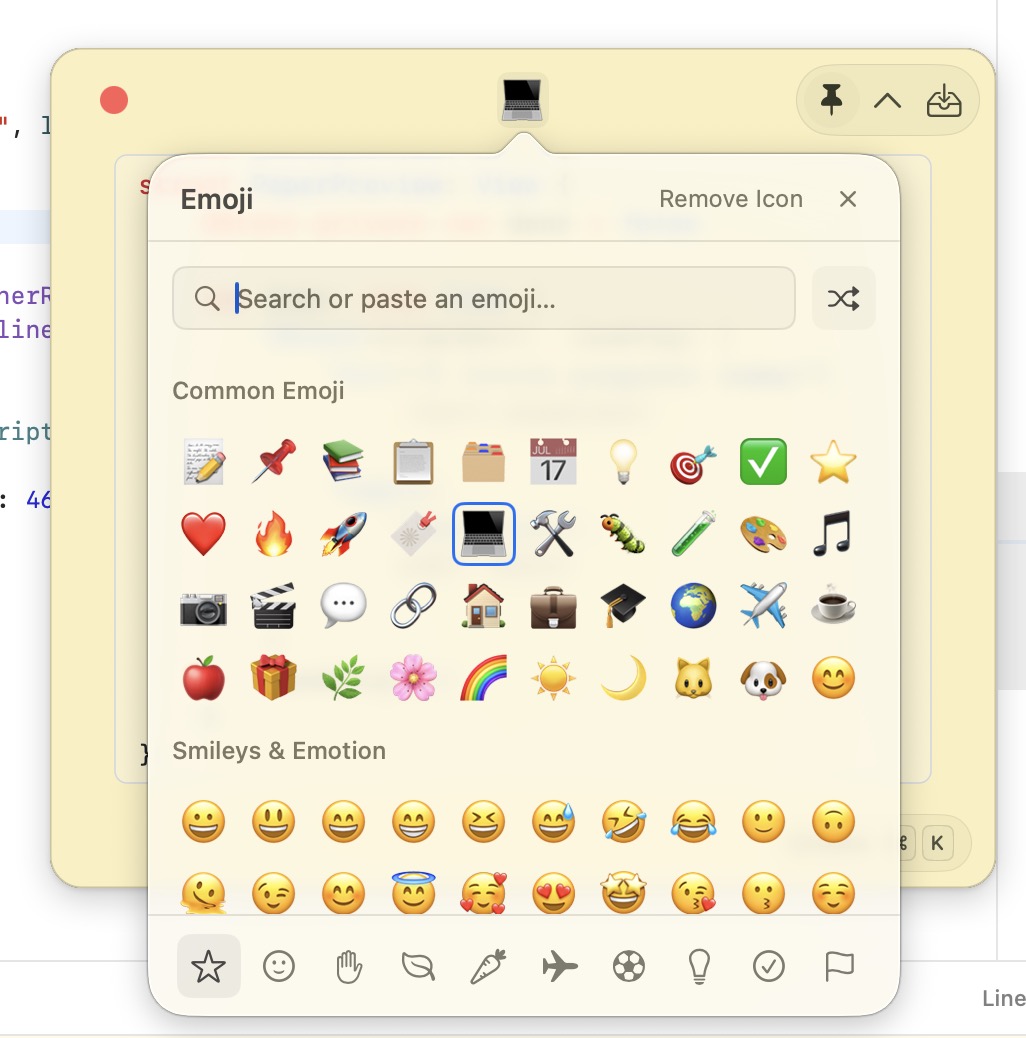
A laptop icon gives this code note an easy-to-recognize visual cue.
Fold a note down to a small reminder
Sometimes I still want a note nearby, but don’t need to see all of it.
Foldpin can fold it into a narrow bar that uses the first nonempty line as its title. Expand it and continue editing, without maintaining a separate title field.
That frees up space while leaving a small reminder within reach.

The same code note, folded down with its icon and first line still visible.
Paper or glass, light or dark
Foldpin currently offers paper and glass appearances, both with light and dark themes. You can also choose colors for individual notes.
I plan to add more detailed appearance controls, including finer color customization, window opacity, and background blur, so people can find their own balance between appearance and readability. Those additional controls aren’t available yet.
The earlier desktop screenshot shows the paper appearance in dark mode: warm paper against a dark Xcode window. The glass appearance uses Liquid Glass across the whole note.
These two screenshots show glass in light and dark mode. Appearance and theme can be chosen independently, so glass notes can be light or dark according to your preference.
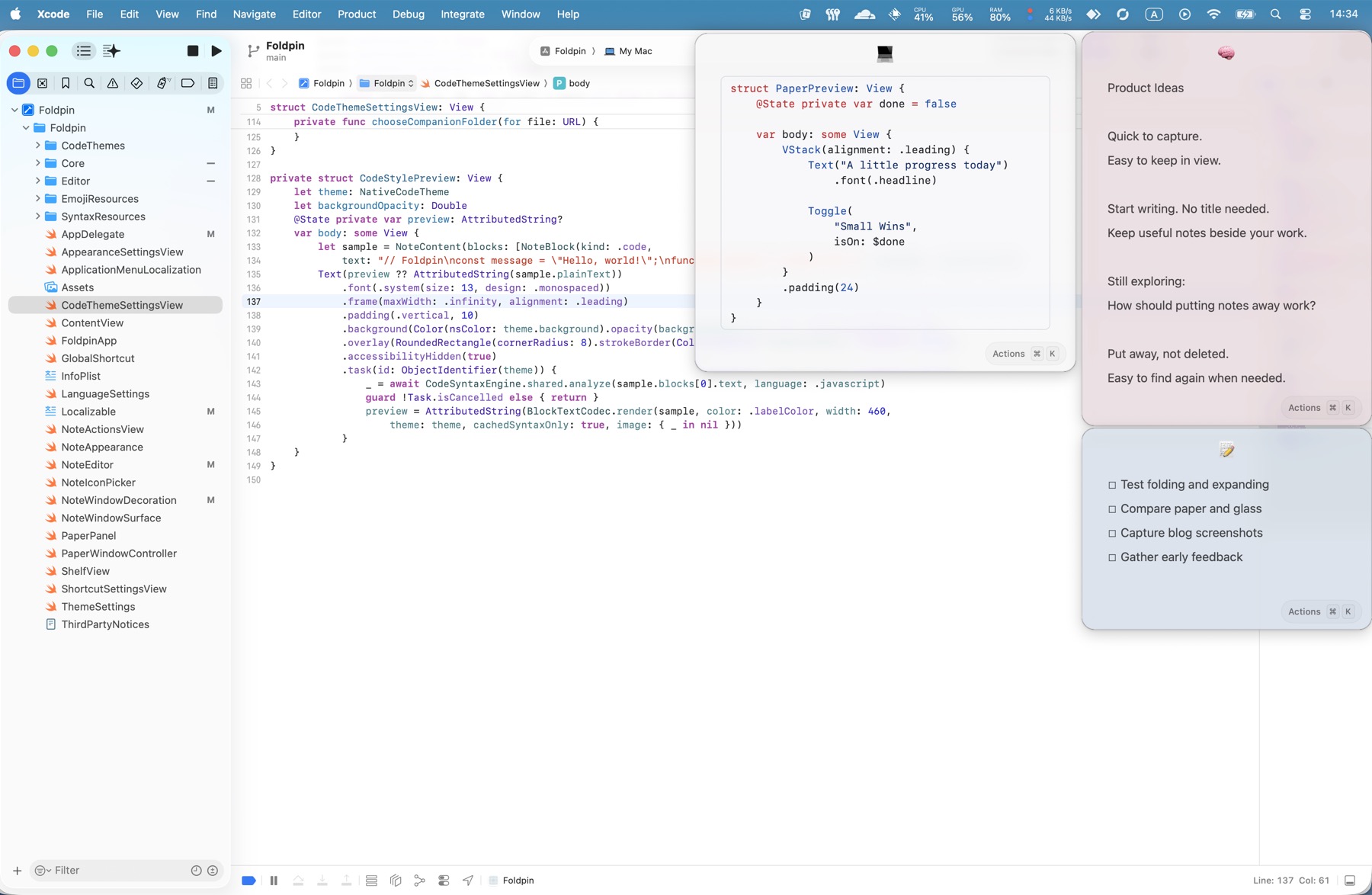
Glass appearance, light mode. Individual notes can keep their own colors.
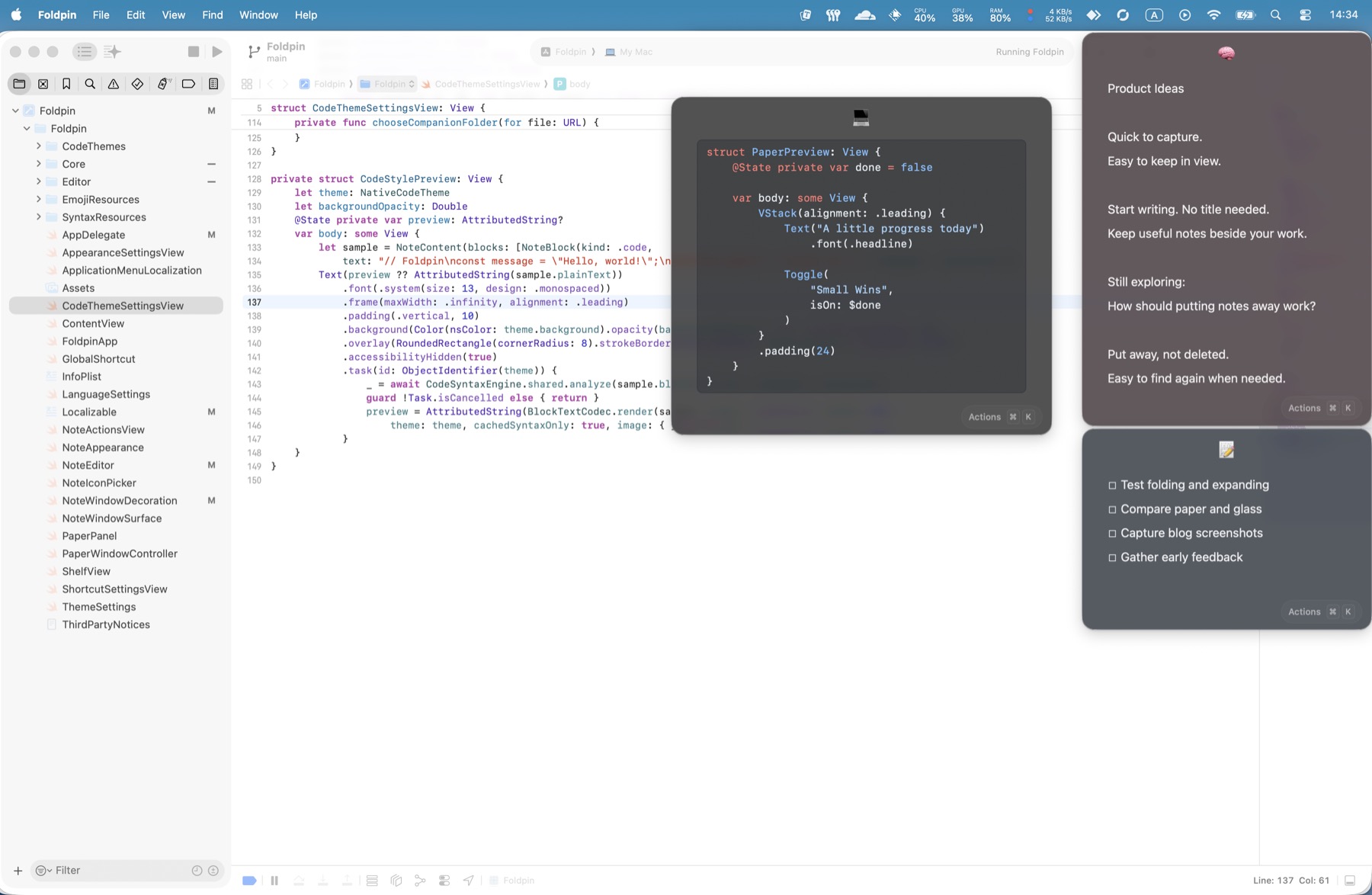
Glass appearance, dark mode. Foldpin’s theme can be set independently of the apps behind it.
Where I’d like to take it next
Putting a note away shouldn’t mean deleting it
As notes accumulate, some are no longer needed right now, but I still want to keep them.
I’d like to put them away to clear some desktop space, then find them easily when I need them again. I’m still exploring how putting notes away and retrieving them should work, and how to make the transition feel natural.
I’ll return to that design as the core experience of capturing, placing, and folding notes gets more polished.
Connecting notes to AI tools
Beyond transcription, I’d like to explore connecting to AI services through APIs to help organize and summarize content I’ve already captured.
That might mean turning scattered thoughts into tasks or pulling key points from a working note. This is still a plan: the interfaces, model choices, and data handling haven’t been decided. AI won’t be a prerequisite for basic note-taking.
The cover illustrates that longer-term direction: exploring local AI to organize fragments into a personal knowledge base, then exporting them to tools such as Obsidian or saving them as Markdown files. Those organization and integration features aren’t implemented yet. I want to develop them gradually around real needs.
Still in development
Foldpin is a working native macOS prototype. It hasn’t been publicly released yet, and I don’t have a release date to share. I’m keeping the source code private for now.
My next priority is to refine input responsiveness, window behavior, and everyday reliability, including further testing across displays, full-screen apps, and Spaces.
I’ll keep using it on my own desktop and sharing how it develops.
If you use sticky notes too, I’d love to know: what do you usually capture—tasks, code, quick thoughts, or voice notes?
Come chat with me on X: @jasonyu_dev. If you’d like to try Foldpin when it’s ready, let me know there too.
Foldpin’s source code remains private and is not covered by this article’s license.